Switching between two computers should not require reconnecting two monitors, a keyboard, and a mouse every time. The right KVM switch can centralize that setup and make a dual-screen workstation faster to manage.
These 10 picks cover common needs, including DisplayPort and HDMI connectivity, USB-C laptop docking, 4K and 8K support, high refresh rates, and multiple shared USB ports.
Best 10 Kvm Switches for Dual Monitors Picks for 2026
Best 8K DisplayPort Pick
Dual-Monitor KVM for High-Refresh Workflows

- Up to 8K@60Hz or 4K@120Hz
- Shares two monitors and four USB devices
- Includes wired controller; no hotkeys
Best For: DisplayPort workstations needing high-resolution dual-screen switching
Best HDMI Feature Set

- Dual HDMI monitors up to 4K@60Hz
- Four USB 3.0 peripheral ports
- Includes cables and desktop controller
Best For: HDMI-based home and office workstations
Best Laptop Docking Solution
12-in-1 KVM for Two USB-C Laptops

- Switches two USB-C laptops across two monitors
- Adds Ethernet, SD, audio, and USB ports
- Supports up to 60W charging per laptop
Best For: USB-C laptop workstations needing docking features
Best 4K High-Refresh Value
DisplayPort KVM with 144Hz Output

- Supports 4K@144Hz dual-display switching
- Shares four USB 3.0 devices
- Includes wired controller and power adapter
Best For: DisplayPort users seeking smooth high-refresh output
Best 8K HDMI Pick

- Up to 8K@60Hz and 4K@120Hz
- Four USB 3.0 peripheral ports
- Button and wired-controller switching
Best For: Two HDMI computers and high-resolution dual-monitor setups
Best Mixed-Port Option
HDMI and DisplayPort Dual-Monitor KVM

- 4K@60Hz dual-monitor support
- Four USB 3.0 peripheral ports
- Panel and wired-controller switching
Best For: Systems with native HDMI and DisplayPort outputs
Best USB-C Docking Choice
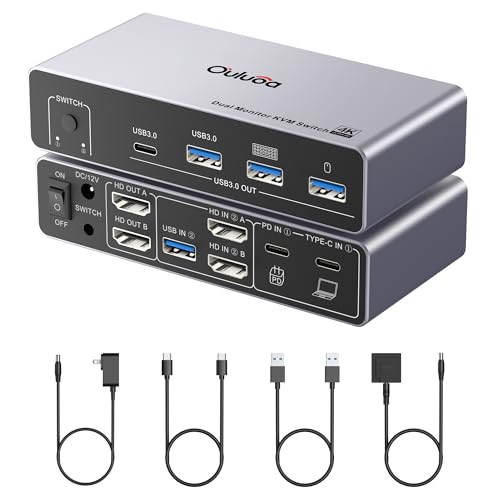
- Supports desktop and laptop switching
- 100W PD charging with external power
- Two HDMI outputs and USB expansion
Best For: Desktop-and-laptop workstations using USB-C
Best DisplayPort Pick

- DisplayPort support up to 8K@60Hz or 4K@144Hz
- Extended or mirrored dual-monitor modes
- Four USB 3.0 ports with wired controller
Best For: DisplayPort workstations and high-refresh-rate gaming setups
Best HDMI Workstation Option

- Supports 8K@60Hz and 4K@120Hz
- Four USB 3.0 peripheral ports
- Panel-button and wired-controller switching
Best For: HDMI workstations, gaming PCs, and laptop setups
Best Feature-Matched HDMI Pick

- 8K@60Hz and 4K@120Hz HDMI support
- Copy and extended display modes
- Four USB 3.0 ports plus desktop controller
Best For: Dual-HDMI workstations needing shared USB accessories
Best 8K DisplayPort Pick – Dual-Monitor KVM for High-Refresh Workflows
If you need kvm switches for dual monitors with high-resolution DisplayPort support, this model connects two computers to two monitors and shared USB peripherals. It supports up to 8K at 60Hz or 4K at 120Hz, provided your computers and displays meet the required specifications.
Best For: DisplayPort users who need extended or mirrored dual-screen modes, high refresh rates, and shared USB 3.0 accessories.
Pros:
- Supports up to 8K@60Hz and 4K@120Hz.
- Shares two monitors and up to four USB devices.
- Includes a wired controller for convenient switching.
- Metal housing and an external 12V power supply support stable operation.
Cons:
- Each computer needs two DisplayPort connections and a USB connection.
- Keyboard hotkeys are not supported.
- DisplayPort cables are recommended to be no longer than 1.5 meters.
This is a strong choice for a high-resolution dual-monitor workstation, but check your computer’s dual-DisplayPort capability and cable lengths before buying.
Best HDMI Feature Set – UGREEN Dual-Monitor HDMI KVM
Among kvm switches for dual monitors, this UGREEN HDMI model is aimed at straightforward two-computer setups. It supports two HDMI displays at up to 4K@60Hz and provides four USB 3.0 ports for peripherals such as a keyboard, mouse, printer, or storage device.
Best For: Home and office users with HDMI-equipped computers who want 4K dual-monitor switching and several shared USB ports.
Pros:
- Supports dual monitors in extended or mirror mode.
- Offers 4K@60Hz output with HDMI 2.0, HDR, and HDCP support.
- Provides three USB-A and one USB-C 3.0 port.
- Includes HDMI cables, USB cables, power adapters, and a desktop controller.
Cons:
- It is an HDMI switch, not a DisplayPort model.
- Each computer requires two HDMI cables plus one USB-A connection.
- Keyboard hotkeys and EDID emulation are not supported.
The included accessories make this a convenient HDMI package, though buyers should verify dual-screen support on each computer and use suitably short HDMI output cables.
Best Laptop Docking Solution – 12-in-1 KVM for Two USB-C Laptops
This KVM docking station stands out among kvm switches for dual monitors by combining switching with a broad laptop dock. It connects two USB-C laptops to the same dual-monitor setup while also adding Ethernet, card-reader, audio, charging, and multiple USB ports.
Best For: USB-C laptop users building a shared home-office or hybrid-work desk with extensive connectivity needs.
Pros:
- Controls two laptops through two HDMI monitors and shared peripherals.
- Provides 12-in-1 connectivity, including Ethernet, SD, audio, USB, and HDMI.
- Supports up to 60W charging for each laptop.
- EDID emulation and automatic wake-up enable switching in about 2–3 seconds.
Cons:
- Laptops must support USB-C DP Alt Mode and DP MST.
- Mac models support mirrored displays only because of macOS limitations.
- It is not compatible with 5K monitors, FreeSync/G-Sync, or Dell Display Manager.
This is more capable than a basic KVM, especially for laptop-centric desks, but compatibility checks are essential before purchase—particularly for Mac and high-resolution monitor setups.
Best 4K High-Refresh Value – DisplayPort KVM with 144Hz Output
For kvm switches for dual monitors that prioritize smooth motion, this DisplayPort model supports up to 4K@144Hz and shares two displays plus four USB devices between two computers. It offers both front-panel and wired-controller switching for a flexible desk setup.
Best For: DisplayPort users who want 4K high-refresh dual-monitor switching for work, gaming, or other motion-sensitive applications.
Pros:
- Supports up to 4K@144Hz with up to 48Gbps video bandwidth.
- Shares two monitors and four USB 3.0 devices.
- Offers panel-button and external wired-controller switching.
- Includes a 12V power adapter and two USB-A cables.
Cons:
- DisplayPort cables are not included.
- Each computer needs two DisplayPort cables and one USB cable.
- Keyboard hotkeys are not supported.
This model is a practical fit for high-refresh DisplayPort setups, provided your graphics hardware supports dual monitors and you budget for the required DisplayPort cables.
Best 8K HDMI Pick – Compact Dual-Monitor KVM
For shoppers comparing kvm switches for dual monitors, this model is a strong fit when both computers use HDMI connections and high refresh rates matter. It supports dual-monitor mirroring or extended display modes, up to 8K at 60Hz, and offers four USB 3.0 ports for shared peripherals.
Best For: Users with two HDMI-equipped computers who want high-resolution dual-monitor switching and several shared USB accessories.
Pros:
- Supports up to 8K@60Hz and 4K@120Hz when the computers, displays, and cables support those specifications.
- Offers four USB 3.0 ports with data speeds up to 5Gbps, plus backward compatibility with USB 2.0 and 1.1.
- Includes both a unit-mounted button and a wired desktop controller for switching.
- Compact metal housing and broad operating-system compatibility.
Cons:
- Each computer must provide two HDMI ports and one USB-A port; docking stations and adapter cables are not supported.
- Both monitors show only one computer’s signal at a time, and hotkey switching is unavailable.
This is a capable choice for a direct HDMI-to-HDMI setup, especially if you want 8K support and a tidy desk footprint. Confirm your port layout before buying, since its connection requirements are specific.
Best Mixed-Port Option – HDMI and DisplayPort Dual-Monitor KVM
This HDMI and DisplayPort model is worth considering among kvm switches for dual monitors if each computer can provide one HDMI and one DisplayPort connection. It supports 4K at 60Hz, four USB 3.0 peripherals, and both extended and copy display modes.
Best For: Desktop or laptop users with native HDMI and DisplayPort outputs who need shared monitors, keyboard, mouse, and USB accessories.
Pros:
- Supports dual-monitor output at up to 4K@60Hz, with backward compatibility for 4K@30Hz and 1080p@60Hz.
- Provides four USB 3.0 ports for shared keyboards, mice, printers, scanners, and similar devices.
- Offers panel-button and wired-controller switching without requiring access to the main unit.
- Includes a 12V/1A power adapter for stable operation of connected USB devices.
Cons:
- It does not convert signals: HDMI input must connect to an HDMI monitor, and DisplayPort input to a DisplayPort monitor.
- Both ports for each computer must connect to that same computer, and keyboard shortcuts are not supported.
- Each computer must support dual displays.
The main advantage here is flexible native HDMI-plus-DisplayPort connectivity without relying on signal conversion. Carefully check your computers, docking stations, monitors, and cables before purchase.
Best USB-C Docking Choice – 8K Dual-Monitor USB-C KVM
For a desktop-and-laptop workspace, this USB-C model stands out among kvm switches for dual monitors. It connects one desktop and one laptop, supports two HDMI displays, includes 100W Power Delivery, and adds USB expansion for shared peripherals.
Best For: Hybrid workstations that switch between a desktop and USB-C laptop while sharing two HDMI monitors and charging the laptop.
Pros:
- Supports up to 8K@60Hz from the desktop, with support for 4K@144Hz, 4K@120Hz, and 4K@60Hz; the laptop supports 4K@60Hz via USB-C.
- Includes two HDMI outputs for extended or mirrored display configurations.
- Provides three USB 3.0 ports, one USB-C port, and up to 5Gbps shared bandwidth for peripherals.
- Offers 100W PD charging, an external 12V adapter, a wired remote, and a 12-month warranty.
Cons:
- Windows is required for MST display mode; macOS operates in SST mode only.
- HDMI cables within 6.56 feet are recommended for stable signal transmission.
- The four USB ports share bandwidth rather than providing 5Gbps independently to every port.
This is the most versatile option for a desktop-and-laptop arrangement, particularly when laptop charging and USB-C connectivity are priorities. Check your laptop’s USB-C display capability and your operating system’s display-mode limitations first.
Best DisplayPort Pick – 4K@144Hz Dual-Monitor KVM
If you need kvm switches for dual monitors and your computers use DisplayPort, this model combines dual-screen switching with high refresh-rate support. It connects two computers to two DisplayPort monitors and shares a keyboard, mouse, and up to four USB peripherals.
Best For: DisplayPort workstations, high-refresh-rate gaming setups, and users who want extended or mirrored dual-monitor modes.
Pros:
- Supports up to 8K@60Hz or 4K@144Hz, depending on the rest of the setup.
- Supports extended and mirrored display modes.
- Includes four USB 3.0 peripheral ports and an external 12V power adapter.
- Offers front-panel and wired desktop-controller switching.
Cons:
- DisplayPort cables are not included.
- Requires two available DisplayPort outputs and one USB-A connection on each computer.
- Does not support keyboard hotkey switching.
This is a strong fit when your computers and monitors already use DisplayPort and you value smooth high-refresh-rate output. Confirm graphics-card, monitor, and cable compatibility before buying.
Best HDMI Workstation Option – 8K HDMI Dual-Monitor KVM
For HDMI-based setups, this option among kvm switches for dual monitors lets you control two computers with one keyboard and mouse while sharing two displays and four USB peripherals. It supports high-resolution output and switching from either the unit or its wired controller.
Best For: HDMI workstations, gaming PCs, laptops, and mixed work-and-personal desk setups.
Pros:
- Supports up to 8K@60Hz and 4K@120Hz.
- Provides four USB 3.0 ports for shared peripherals.
- Works with Windows, Mac, Linux, Unix, and other listed operating systems.
- Includes external 12V power for more stable USB operation.
Cons:
- Each computer needs two HDMI outputs and support for mirrored or extended displays.
- Passive adapters and standard conversion cables may not carry video; active adapters are required where applicable.
- Keyboard hotkey switching is not supported.
The main buying consideration is source compatibility: this KVM cannot create dual-monitor output from a computer with only one supported display output. With the required HDMI connections, it offers a practical one-touch way to share a dual-display setup.
Best Feature-Matched HDMI Pick – 8K Extended-Display KVM
This HDMI model is designed for shoppers comparing kvm switches for dual monitors with shared USB connectivity. It switches two computers across two monitors, supports independent extended content or duplicated output, and includes a desktop controller for quick source changes.
Best For: Dual-HDMI computer setups that need shared USB accessories, high-resolution output, and simple physical switching.
Pros:
- Supports up to 8K@60Hz and 4K@120Hz, plus lower resolutions.
- Offers both extended and copy display modes.
- Includes four USB 3.0 ports with up to 5Gbps transfer speeds.
- Includes a 12V power adapter and a 12-month replacement warranty.
Cons:
- Requires two HDMI outputs and dual-monitor support on each computer for extended display.
- High-power USB devices such as hard disks may require the included external power supply.
- Switching uses panel buttons or the wired controller; hotkeys are not supported.
This model makes sense for a dual-HDMI setup where USB sharing and both copy and extended modes matter. Check your computers’ graphics outputs and display capabilities before committing to the installation.
How We Picked the Best Kvm Switches for Dual Monitors
We compared these dual-monitor KVM models by looking at video standards, supported resolution and refresh rates, host-device compatibility, USB connectivity, and the practical requirements of switching between two computers. We also considered whether each design suits desktop PCs, laptops, or mixed setups.
Specifications such as “8K” or “144Hz” do not guarantee that every setup will reach those limits. Your computers, graphics outputs, cables, monitors, and operating systems must all support the selected signal standard.
Quick Comparison
- Best for high refresh gaming: Look for DisplayPort or HDMI models rated for 4K at 120Hz or 144Hz.
- Best for office productivity: A 4K dual-monitor switch with several USB 3.0 ports is usually sufficient.
- Best for laptops: USB-C KVM dock designs can reduce cable clutter, but check power delivery and host compatibility.
- Best for mixed equipment: HDMI-plus-DisplayPort models may accommodate different computer and monitor connections.
Key Buying Factors for Kvm Switches for Dual Monitors
Video Inputs and Outputs
Match the KVM’s ports to both computers and monitors. DisplayPort is common on desktop graphics cards and supports high refresh rates, while HDMI is widely available on laptops, consoles, and office displays. A mixed-port switch can be useful when the two computers do not have identical outputs.
Resolution, Refresh Rate, and Display Mode
Confirm the exact combination you need, such as dual 4K at 60Hz or lower-resolution gaming at 120Hz or 144Hz. Also verify that the switch supports extended desktop mode rather than mirroring only. An advertised maximum may apply to one output or a particular cable configuration.
USB Sharing and Switching Method
USB 3.0 ports are useful for keyboards, mice, webcams, storage devices, and other peripherals. Check the number and location of ports, then decide whether you prefer a wired button, remote switch, hotkey, or automatic switching. Some accessories may need to be re-detected after changing computers.
USB-C and Power Requirements
USB-C models are convenient for laptops, but USB-C ports do not all support video output, charging, or the same data speeds. Check DisplayPort Alt Mode, power delivery limits, included chargers, and whether the laptop needs additional power to drive two displays.
Who Should Buy Which Kvm Switches for Dual Monitors?
Choose a high-refresh DisplayPort or HDMI model if you switch between gaming or creative PCs and need smooth motion. Choose a 4K 60Hz USB 3.0 model for typical office work, browsing, and productivity. Choose a USB-C KVM dock if one computer is a laptop and minimizing connections matters more than universal compatibility. Choose a mixed HDMI/DisplayPort switch when your two computers use different video standards.
Before buying, map every connection: two video paths from each computer, two monitor inputs, the USB upstream cables, and any required power adapters. That simple check helps avoid incompatible ports, missing cables, or a setup that cannot deliver the resolution and refresh rate you expect.