Managing two computers from one desk does not have to mean duplicate keyboards, mice, monitors, and cables. The best KVM switches for home offices let you share displays and USB peripherals while switching between work and personal systems with minimal disruption.
This roundup covers straightforward HDMI models, dual-monitor DisplayPort and HDMI options, USB-only switches, laptop-friendly docks, and a remote KVM designed for access over Wi-Fi. Use the buying guide below to match the right switch to your displays, computers, and daily workflow.
Best 10 Kvm Switches for Home Offices Picks for 2026
Compact 4K KVM

- 4K@60Hz support for one HDMI monitor
- Switch by device button or wired controller
- Plug-and-play, compact, and externally power-free
Best For: Sharing one HDMI monitor, keyboard, and mouse between two PCs
Remote Access KVM
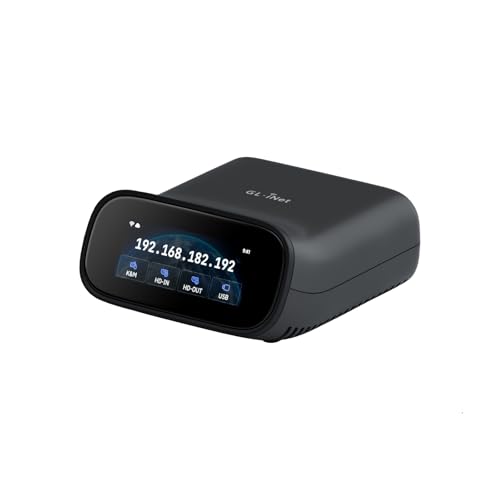
- Remote control through web, app, or self-hosting
- 4K@30FPS passthrough and two-way audio
- Tailscale and Wi-Fi 6 support for flexible access
Best For: Remote administration and recovery of home-office or lab computers
USB Peripheral Switch
UGREEN 2-Computer USB 3.0 Switcher

- Shares four USB peripherals between two computers
- Includes USB-C and USB-A connectivity
- 5Gbps transfer with button or controller switching
Best For: Sharing USB accessories when monitor switching is unnecessary
Dual-Laptop KVM Dock
AV Access 2-Monitor USB-C KVM Dock

- Switches two laptops across two monitors
- 12-in-1 dock with USB, Ethernet, audio, and SD
- Up to 60W charging per laptop and 2–3 second switching
Best For: Full-featured dual-laptop home-office workstations
Four-Computer Command Center
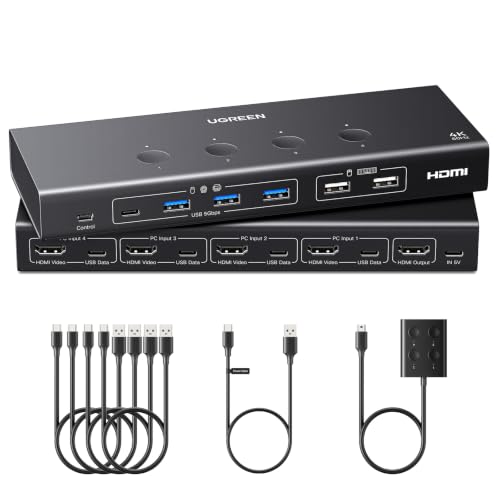
- Controls four computers from one monitor
- Supports 4K at 60Hz with EDID emulation
- Shares six USB ports and includes wired switching
Best For: Home offices managing up to four computers from one monitor
Simple Two-PC Sharing
2-Port HDMI KVM with Desktop Controller

- Shares one 4K monitor between two computers
- Includes four USB 3.0 peripheral ports
- Comes with power adapter, USB cables, and wired controller
Best For: Two-computer desks using one HDMI monitor
Best Dual-Monitor HDMI Setup

- Supports two HDMI monitors in extended or mirror mode
- 4K at 60Hz with four USB 3.0 peripheral ports
- Includes wired controller, cables, and power adapters
Best For: Dual-monitor HDMI home offices sharing two computers
Best Simple HDMI Switch

- Shares one HDMI monitor between two computers
- Supports 4K at 60Hz with one-button switching
- Driver-free setup for Windows, Mac, Linux, and Chrome OS
Best For: Single-monitor home offices with two computers
Best Mixed-Port Dual-Monitor Setup
HDMI+DisplayPort Dual-Monitor KVM

- Shares two monitors between two computers
- Supports HDMI and DisplayPort at up to 4K 60Hz
- Adds four USB 3.0 ports and wired switching
Best For: Dual-monitor offices with compatible HDMI and DisplayPort connections
Compact 4K KVM – 2-Computer HDMI KVM Switch
For home offices using one HDMI monitor with two computers, this compact KVM switch keeps your keyboard and mouse connected while letting you change PCs with a button or wired desktop controller. It supports up to 4K at 60Hz, but requires compatible HDMI equipment and a high-quality, short HDMI 2.0 cable.
Best For: Home-office users sharing one HDMI display and USB keyboard/mouse between two PCs.
Pros:
- Supports up to 4K@60Hz and common lower resolutions.
- Includes a wired controller for convenient switching away from the device.
- Plug-and-play design needs no external power supply or drivers.
- Compact build and 24-month replacement support.
Cons:
- Does not support hotkey switching.
- Not recommended for Mac devices according to the supplied compatibility notes.
- HDMI cables are not included, and adapters may cause instability.
This is a straightforward choice for a single-monitor desk, especially when simple physical switching matters more than advanced features. Check your ports and cable requirements before buying.
Remote Access KVM – GL.iNet Comet Pro Wi-Fi 6 KVM
The GL.iNet Comet Pro is designed for home offices and home labs that need remote computer access rather than simple desk-side switching. It combines dual-band Wi-Fi 6, wired connectivity, 4K@30FPS video passthrough, two-way audio, and browser- or app-based control across major operating systems.
Best For: Remote access, troubleshooting, BIOS work, and disaster recovery for Windows, macOS, or Linux systems.
Pros:
- Supports remote access through a web interface, app, or self-hosted setup.
- Provides 4K@30FPS video passthrough with two-way audio.
- Built-in Tailscale supports encrypted WireGuard-based connections.
- Touchscreen interface simplifies local configuration.
Cons:
- More complex and specialized than a basic local KVM switch.
- ATX Board and Fingerbot extensions for power control are sold separately.
- Remote features depend on network and cloud or self-hosted configuration.
Choose this model when remote administration is the priority. Its ability to reach BIOS and reinstall an operating system makes it particularly useful for unattended systems, though it may be more capability than a typical desk-only setup requires.
USB Peripheral Switch – UGREEN 2-Computer USB 3.0 Switcher
The UGREEN CM662 is useful alongside kvm switches for home offices when you need to share USB peripherals but do not need to share a monitor. It connects two computers to four USB devices, including a mix of USB-C and USB-A equipment, and switches with either the main button or included controller.
Best For: Sharing keyboards, mice, printers, scanners, cameras, or other USB data devices between two computers.
Pros:
- Shares up to four USB devices between two computers.
- Offers one USB-C port and three USB-A ports.
- Supports data transfer up to 5Gbps and plug-and-play operation.
- Includes both device-button and controller switching.
Cons:
- It is not a KVM switch and cannot transmit video or connect a monitor.
- Optional power may be needed when using several or higher-power devices.
- USB-C input devices may require a USB-C-to-USB adapter.
This is a peripheral-sharing accessory, not a complete KVM solution. It makes sense for a desk where displays are handled separately, but shoppers wanting one-button monitor and USB switching should choose an actual KVM switch instead.
Dual-Laptop KVM Dock – AV Access 2-Monitor USB-C KVM Dock
The AV Access KVM dock is built for a two-laptop home office with two monitors and a full set of peripherals. It combines KVM switching with a 12-in-1 dock, offering dual HDMI outputs, USB ports, Ethernet, audio, SD storage, USB-C connectivity, and up to 60W charging for each laptop.
Best For: Dual-laptop workstations that need shared two-monitor output, peripherals, networking, and charging.
Pros:
- Controls two laptops through one dual-monitor setup.
- Combines KVM switching and 12-in-1 docking features.
- Supports 4K UHD input, 1Gb Ethernet, SD, audio, and multiple USB ports.
- EDID emulation and automatic wake-up enable switching in about 2–3 seconds.
Cons:
- Laptops must support USB-C DP Alt Mode and DP MST for extended dual displays.
- Mac models support mirrored displays only due to macOS limitations.
- Not compatible with 5K monitors, FreeSync/G-Sync, or Dell Display Manager.
This is the strongest fit for a feature-rich dual-laptop desk rather than a basic two-PC setup. Confirm USB-C video compatibility and display requirements first, especially if using a Mac or ultrawide monitor.
Four-Computer Command Center – UGREEN 4-Port HDMI KVM
For home offices running several computers, this UGREEN HDMI KVM switch keeps four systems on one monitor while sharing a keyboard, mouse, and other USB accessories. It supports up to 4K at 60Hz and offers both onboard and wired-controller switching, but each computer needs separate HDMI and USB A-to-C data connections.
Best For: Home offices managing up to four computers from one monitor.
Pros:
- Connects four computers to one display and shares up to six USB peripherals.
- Supports 4K at 60Hz, HDR, 3D, HDMI 2.0, and HDCP 2.2/1.4.
- Offers EDID emulation to help preserve display settings and reduce window rearrangement.
- Includes switching from the unit or a wired desktop controller.
Cons:
- HDMI cables and power adapter are not included.
- USB A-to-C data cables are required for each computer’s peripherals to work properly.
- Not designed for use with docking stations.
This is a strong choice among KVM switches for home offices when four computers and several shared USB devices are central to the setup. Confirm your cables, power source, and laptop wake settings before buying.
Dual-Screen Desk Upgrade – Unitek DisplayPort Dual-Monitor KVM
This Unitek DisplayPort KVM is built for a two-computer, two-monitor home office where extended screen space matters. Each computer sends one DisplayPort connection to drive both monitors, while shared USB 3.0 ports handle common accessories. Check carefully before purchase: it does not support HDMI input and is not compatible with laptops.
Best For: Desktop-based dual-monitor workstations using DisplayPort.
Pros:
- Shares two monitors, one keyboard, and one mouse between two computers.
- Supports 4K at 60Hz and backward compatibility with 2K and 1080p.
- Provides one USB-C and three USB-A 3.0 ports for peripherals and storage.
- Switches from the front button or wired remote without software or drivers.
Cons:
- Does not support HDMI input.
- Not compatible with laptops, despite broad desktop and console compatibility claims.
- Each computer must use one DisplayPort output to connect to both monitors.
Among KVM switches for home offices, this model stands out for a compact dual-display DisplayPort arrangement that can reduce cable clutter. It is best suited to compatible desktop systems rather than mixed laptop setups.
Simple Two-PC Sharing – 2-Port HDMI KVM with Desktop Controller
For a straightforward home-office setup, this two-port HDMI KVM lets two computers share one monitor, keyboard, mouse, printer, and other USB devices. It supports 4K at 60Hz and includes the power adapter, USB cables, and a wired desktop controller, making it a practical option for switching between two systems without moving cables.
Best For: Two-computer desks that need one HDMI monitor and shared USB accessories.
Pros:
- Controls two computers through one monitor, keyboard, and mouse.
- Supports HDMI output up to 4K at 60Hz when the connected equipment supports it.
- Four USB 3.0 ports provide up to 5Gbps transfer speeds and support older USB standards.
- Includes a 12V power adapter, two USB 3.0 cables, and a wired controller.
Cons:
- Keyboard hotkey switching is not supported.
- Designed for one shared monitor rather than a dual-display setup.
- HDMI cables are not listed among the included accessories.
This model is a sensible pick among KVM switches for home offices when the goal is simple two-PC switching with useful USB sharing. Its physical buttons, LED status indicators, and included power supply keep operation uncomplicated.
Best Dual-Monitor HDMI Setup – UGREEN 2-Monitor KVM
For home offices using two computers and two HDMI monitors, this UGREEN model is one of the more capable kvm switches for home offices. It supports extended or mirrored displays, 4K at 60Hz, and shared USB peripherals, with button or wired desktop-controller switching.
Best For: Users who need to share two HDMI monitors and several USB devices between two computers.
Pros:
- Supports two monitors with extended or mirror mode.
- Handles resolutions up to 4K at 60Hz and supports HDR-related formats.
- Provides four USB 3.0 ports, including USB-A and USB-C connectivity.
- Includes HDMI and USB cables, power adapters, and a desktop controller.
Cons:
- It is an HDMI switch, not a DisplayPort KVM.
- Each computer requires two HDMI connections and one USB-A connection.
- It does not support EDID emulation or keyboard hotkey switching.
This is a strong fit for a dual-screen HDMI workstation, provided both computers support simultaneous dual-display output and the monitor cables stay within the stated length guidance.
Best Simple HDMI Switch – Jancane 2-Port 4K KVM
This compact Jancane unit offers a straightforward way to share one HDMI monitor, keyboard, and mouse between two computers. For shoppers comparing kvm switches for home offices, its push-button operation, included cables, and driver-free setup make it a practical choice for a basic desk arrangement.
Best For: Home-office users who need one-monitor switching between two computers.
Pros:
- Controls two computers through one monitor, keyboard, and mouse.
- Supports 4K at 60Hz, along with 4K at 30Hz, 3D, and 1080p resolutions.
- Uses a simple one-button switch with LED status indicators.
- Works with Windows, Mac OS, Linux, and Chrome OS without driver installation.
Cons:
- Designed for a single shared monitor rather than a dual-monitor setup.
- It has USB 2.0 cables and does not list USB 3.0 peripheral ports.
- No external power is required, but compatibility can depend on the connected HDMI devices.
Choose this model when simplicity matters more than expanded display or USB connectivity. It is well suited to a conventional one-screen workstation or occasional home-office and gaming use.
Best Mixed-Port Dual-Monitor Setup – HDMI+DisplayPort Dual-Monitor KVM
This HDMI-plus-DisplayPort KVM is aimed at home offices that use a mixed-port dual-monitor arrangement. It switches two computers across two monitors, supports extended or copy mode, and adds four USB 3.0 ports for shared accessories.
Best For: Users with two computers and dual monitors that use matching HDMI-plus-DisplayPort connections.
Pros:
- Supports two monitors with extended and copy modes.
- Delivers up to 4K at 60Hz when the computers, cables, and monitors support it.
- Includes four USB 3.0 ports for keyboards, mice, printers, scanners, and other peripherals.
- Offers front-panel and wired-controller switching with an external 12V power adapter.
Cons:
- It does not convert HDMI input to DisplayPort output, or vice versa.
- Each computer’s HDMI and DisplayPort connections must be connected to that same computer.
- Keyboard hotkey switching is not supported.
This model makes sense for a carefully matched dual-monitor desk, especially where one display uses HDMI and the other uses DisplayPort. Confirm the port arrangement and dual-display capability of both computers before buying.
How We Picked the Best Kvm Switches for Home Offices
We focused on the features that matter most in a home-office setup: supported video inputs and outputs, resolution and refresh-rate limits, the number of computers and monitors supported, USB peripheral sharing, switching methods, and laptop compatibility. We also included products for different desk layouts rather than treating every KVM as interchangeable.
Before buying, confirm the exact port types on both computers and monitors. A switch may support 4K at 60Hz in its headline specification but still require compatible cables, graphics outputs, and settings across the entire connection chain.
Quick Comparison
- Single-monitor HDMI KVMs: Best for two computers sharing one display, keyboard, and mouse.
- Multi-monitor KVMs: Designed for dual-screen productivity, but require matching video connections and enough bandwidth.
- USB switchers: Share peripherals such as keyboards, mice, printers, and scanners without switching video.
- USB-C laptop docks: Useful when one or both computers rely on USB-C for display and peripheral connections.
- Remote KVMs: Allow remote access or management, making them more specialized than conventional desk switches.
Key Buying Factors for Kvm Switches for Home Offices
Video Compatibility
Choose HDMI, DisplayPort, or a combination based on your computers and monitors. Check whether you need one or two displays, then verify support for 4K resolution, 60Hz refresh, HDR, and any ultrawide format you use. Dual-monitor models typically need separate video cables for each computer.
Computer and Peripheral Capacity
Most home-office KVMs support two computers, while some HDMI models accommodate four. Count your USB devices, including a webcam, microphone, storage drive, printer, or scanner. USB 3.0 ports are preferable for faster data devices; basic keyboard-and-mouse use does not require the same bandwidth.
Switching and Power
Look for a physical button, wired remote, hotkey support, or a combination of methods. Hotkeys are convenient, but they may conflict with software shortcuts. Laptop setups may need external power, USB-C charging support, or a dock that can handle the required display output.
Performance and Limitations
High-resolution video, high refresh rates, USB data, and charging can exceed a switch’s practical limits when used together. Review the manufacturer’s operating-system, cable, HDCP, and peripheral compatibility notes before assuming every feature works simultaneously.
Who Should Buy Which Kvm Switches for Home Offices?
Choose a basic HDMI KVM if two computers share one 4K monitor and standard USB peripherals. Choose a dual-monitor HDMI or DisplayPort model if extended screen space is central to your work. Choose a USB switcher if you already have separate video connections and only need to share accessories. Choose a laptop-oriented KVM dock for a cleaner USB-C workstation with fewer adapters. Choose a remote KVM if accessing or managing a computer away from the desk matters more than conventional local switching.