Adding a second monitor can make work, editing, and multitasking far more efficient, but the right adapter depends on your computer’s ports, operating system, and display requirements.
These HDMI extenders for dual displays include USB-C, USB-A, and DisplayPort solutions, with options for 4K output, extended desktops, and platform-specific compatibility.
Best 10 Hdmi Extenders for Dual Displays Picks for 2026
Best Overall for Mac and Windows

- Dual 4K@60Hz HDMI output
- Hybrid USB-C and USB-A connectivity
- Supports recent Macs, Windows, and ChromeOS
Best For: Productivity users needing two 4K extended displays
Best DisplayLink Value
OREI SplitExtend Dual Monitor Adapter

- Adds two extended HDMI displays
- Supports up to 4K@60Hz
- Works with several USB and operating systems
Best For: Mixed-device productivity setups needing dual HDMI outputs
Best for Windows Office Workstations

- Adds two HDMI monitors over USB-A 3.0
- Supports 4K@30Hz plus 1080p@60Hz
- Designed for Windows systems and office productivity
Best For: Windows users expanding a USB-A office workstation
Best DisplayPort Pick
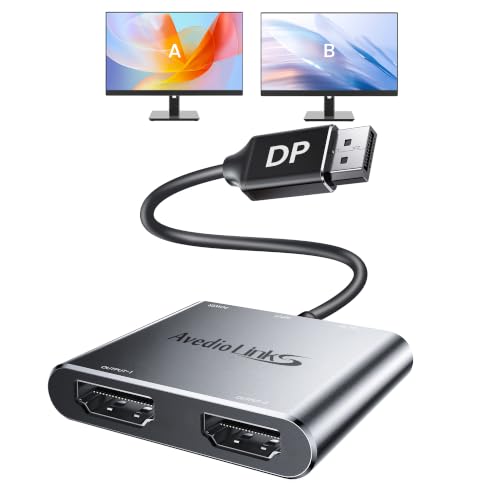
- Extends Windows across two HDMI monitors
- Supports dual 4K at 60Hz with DP 1.4a
- Up to 1080p at 120Hz
Best For: Windows PCs with DisplayPort 1.4a or higher
Best Flexible Compatibility

- Supports mirrored or extended dual displays
- Includes USB-A and USB-C connectivity
- Requires Silicon Motion driver installation
Best For: Users needing flexible USB-A or USB-C compatibility
Best Overall for Mac and Windows – Dual 4K DisplayLink Adapter
For shoppers comparing HDMI extenders for dual displays, the WAVLINK adapter is a flexible productivity option with dual 4K@60Hz HDMI outputs. Its hybrid USB-C/USB-A cable supports many modern laptops, but DisplayLink driver installation is required.
Best For: Mac and Windows users who need two high-resolution extended monitors for office, web, and productivity work.
Pros:
- Drives two simultaneous 4K@60Hz displays.
- Works through USB-C, USB-A 3.0, Thunderbolt 3/4, and USB 4 connections.
- Supports recent Apple silicon Macs, Windows 10/11, and ChromeOS 100+ systems.
- Includes a 12-month warranty, extendable by six months for registered members.
Cons:
- Requires DisplayLink driver installation.
- Not recommended for gaming, graphics-intensive work, or design applications.
- Does not support HDCP-protected streaming content such as Netflix and Hulu.
Its dual 4K output and broad port compatibility make it a strong all-around choice for productivity, provided your workflow does not depend on protected streaming or demanding graphics performance.
Best for Triple-Screen Windows Setups – llano Dual 4K MST Splitter
The llano is a compelling pick among HDMI extenders for dual displays when your laptop has a USB-C port with DisplayPort Alt Mode. It can add two independent 4K@60Hz HDMI monitors and retain the laptop screen for a three-screen Windows workspace.
Best For: Windows users building a triple-display workstation with charging and high-refresh-rate support.
Pros:
- Supports two independent 4K@60Hz HDMI outputs.
- Can create a triple-extended display system on Windows.
- Passes through up to 100W USB-C Power Delivery.
- Supports up to 144Hz at 2K resolution and HDR10+.
Cons:
- Requires a USB-C port with DisplayPort Alt Mode.
- macOS is limited to mirroring or partial extended-display modes.
- Compatibility depends on the host device and operating system.
Choose this model for a modern USB-C Windows setup where independent screens, laptop charging, and smoother 2K motion matter. Check your device specifications before buying.
Best DisplayLink Value – OREI SplitExtend Dual Monitor Adapter
The OREI SplitExtend offers a practical way to add two HDMI displays when comparing HDMI extenders for dual displays. It supports extended screens at up to 4K@60Hz or 2K@60Hz, with a two-in-one cable for USB-C, USB-A, and compatible Thunderbolt connections.
Best For: Mac, Windows, and ChromeOS users who want a straightforward DisplayLink productivity adapter with broad system support.
Pros:
- Supports two extended HDMI screens, including 4K@60Hz output.
- Compatible with Windows, macOS 10.14 or later, ChromeOS, and Android 7.1+.
- Hybrid cable supports USB-C, USB-A 3.1, Thunderbolt 3/4, and USB 4 devices.
- Includes a one-year warranty and lifetime OREI support.
Cons:
- Requires DisplayLink driver installation on Windows and macOS.
- Not recommended for gaming or graphics-intensive applications.
- Does not support HDCP-protected playback from services such as Netflix and Hulu.
This is a versatile productivity-focused choice, especially for mixed-device households. Confirm your operating system version and allow time for the required driver setup.
Best for Windows Office Workstations – StarTech Dual HDMI Adapter
The StarTech USB-A adapter is a dependable Windows-only option among HDMI extenders for dual displays. It adds two HDMI monitors from one USB 3.0 port, with one output supporting 4K@30Hz and the other 1080p@60Hz.
Best For: Windows office and home-work users who need two additional HDMI monitors from a USB-A connection.
Pros:
- Adds up to two HDMI monitors to a Windows laptop or desktop.
- Supports one 4K@30Hz display and one 1080p@60Hz display simultaneously.
- Works with Windows X86, X64, and ARM platforms, including Snapdragon X systems.
- Backed by long-term technical assistance and a multi-year warranty.
Cons:
- Does not support macOS, ChromeOS, or Linux.
- Maximum 4K output is 30Hz rather than 60Hz.
- Administrator rights are required for driver installation.
For a Windows productivity desk, this adapter provides a clear dual-monitor upgrade through familiar USB-A. It is less suitable if you need dual 4K@60Hz output or cross-platform compatibility.
Best DisplayPort Pick – Dual 4K HDMI Adapter
For Windows users seeking HDMI extenders for dual displays, this DisplayPort adapter offers an efficient way to connect two HDMI monitors from one DP source. It supports extended desktop mode, allowing different content on each screen, while automatic resolution adaptation helps accommodate mixed-resolution monitors.
Best For: Windows desktops and laptops with DisplayPort 1.4a or higher that need dual-monitor extension, including dual 4K workstations.
Pros:
- Supports extended Windows desktops across two HDMI monitors.
- Can deliver dual 4K resolution at 60Hz with a compatible DP 1.4a source.
- Supports up to 1080p at 120Hz for smoother motion.
- May operate without external power when the DisplayPort source provides sufficient power.
Cons:
- Windows supports extended or mirrored output, while macOS supports mirror mode only.
- Dual 4K at 60Hz requires a DisplayPort 1.4a or higher source.
- Refresh rates may require manual setting, and USB power may be needed with some sources.
This is a strong choice when dual-screen extension and high refresh rates matter, but buyers should verify the computer’s DisplayPort version and operating-system requirements first.
Best USB-C Option – Dual HDMI Adapter for Laptops
This USB-C adapter is a convenient option for laptops and tablets that support video output through USB-C, USB4, or Thunderbolt. Among HDMI extenders for dual displays, it stands out for plug-and-play setup and broad device compatibility, though output behavior varies by operating system.
Best For: Windows users who want dual extended displays from a compatible USB-C laptop, or macOS users who only need mirrored output.
Pros:
- Supports one 4K display at 60Hz or two 4K displays at 30Hz.
- Plug-and-play design requires no drivers or extra software.
- Compatible with supported USB-C, USB4, and Thunderbolt 3/4/5 devices.
- Works with Windows 10/11, ChromeOS, and macOS 12 or later.
Cons:
- macOS does not support MST extended mode, so both displays mirror the same content.
- The USB-C port must support video output or DP Alt Mode.
- Dual 4K output is limited to 30Hz.
Choose this model for a simple USB-C setup, especially with a Windows laptop. Mac users should treat it as a dual-display mirroring adapter rather than a solution for two independent extended screens.
Best Flexible Compatibility – OREI Dual Monitor Extender
The OREI adapter connects one source to two HDMI displays and supports mirrored or extended viewing, making it a versatile choice for HDMI extenders for dual displays. Its integrated USB-A-to-USB-C design broadens compatibility, but setup requires installing the Silicon Motion driver.
Best For: Windows, macOS, ChromeOS, or compatible Android users who need dual-monitor extension and can install the required driver.
Pros:
- Supports mirrored or extended output across two external monitors.
- Works with USB-C, USB-A, Thunderbolt 3/4, and USB4 devices.
- Supports Windows, macOS, ChromeOS, and Android 7.1 or later.
- Can support a three-screen setup when used with a laptop display.
Cons:
- Requires Silicon Motion driver installation and is not plug-and-play.
- Not compatible with iOS, Linux, or Unix.
- Requires an Intel i5 processor or higher for optimal performance; Android is limited to 1080p mirroring.
This model offers useful port flexibility and dual-display modes, but it is best suited to systems where driver installation is allowed. Work-laptop users should check with IT before purchasing.
Best USB-C Hub – Acer 4-in-1 Dual HDMI Adapter
If you need HDMI extenders for dual displays from a compatible USB-C laptop, this Acer hub combines two HDMI outputs with charging and USB connectivity. It can support dual 4K@60Hz output when the host device, operating system, and display setup allow it, making it a practical choice for a compact workstation.
Best For: Windows users with a USB-C port supporting DisplayPort Alternate Mode who want dual high-resolution displays plus charging and data transfer.
Pros:
- Two HDMI ports support up to 4K@60Hz for single or dual displays, according to the supplied specifications.
- Includes a USB-A 5Gbps port for fast file transfers.
- Offers 100W Power Delivery input, with up to 90W delivered to the host when paired with a suitable charger.
- Compact 4-in-1 design with plug-and-play connectivity.
Cons:
- Requires a USB-C port with DP Alt Mode; a 100W charger and cable are not included.
- macOS mirrors the same content across external monitors rather than extending separate desktops.
- The attached cable is only 20 cm (0.65 ft).
This is a versatile dual-display hub for supported Windows laptops, especially if you also need charging and a USB data port. Check your laptop’s USB-C capabilities and your operating system’s display limitations before buying.
Best Compact Option – Fophmo USB-C Dual HDTV Adapter
The Fophmo adapter is a compact option for shoppers comparing HDMI extenders for dual displays. It provides two HDMI outputs, USB-A connectivity, and 100W Power Delivery, while supporting dual displays up to 4K@30Hz or one display up to 4K@60Hz when the host device and connected equipment are compatible.
Best For: Windows users who need an inexpensive, portable dual-monitor adapter for office work, presentations, and multitasking.
Pros:
- Combines two HDMI ports, a 5Gbps USB-A port, and 100W Power Delivery in one compact hub.
- Supports dual displays up to 4K@30Hz or a single HDMI display up to 4K@60Hz.
- Plug-and-play design for compatible USB-C laptops.
- Works with extended multi-monitor setups on supported Windows devices.
Cons:
- macOS supports mirror mode only for the connected external displays.
- Requires USB-C video output through DP Alt Mode and does not include a charger.
- Compatibility is limited with numerous listed laptop and phone models, so the host device should be checked carefully.
Fophmo offers useful connectivity in a small package, but its dual-display refresh rate is limited to 4K@30Hz. Verify DP Alt Mode support, monitor capabilities, and model compatibility before purchase.
Best DisplayPort Adapter – Buerlaseul DP to Dual HDMI Splitter
For desktop users searching for HDMI extenders for dual displays, the Buerlaseul adapter converts one DisplayPort source into two HDMI monitor outputs. It supports a single 4K@60Hz display or dual 4K@30Hz displays, and its included USB-C power cable is intended to provide stable standalone operation.
Best For: Desktop PCs and graphics cards with a DisplayPort output, including compatible NVIDIA and AMD systems.
Pros:
- Supports dual HDMI monitors with extended display SST/MST functionality.
- Handles 4K@60Hz on one display or 4K@30Hz across two displays.
- Driver-free plug-and-play setup with an included USB-C power cable.
- Compatible with many DisplayPort-equipped desktops, laptops, and graphics cards.
Cons:
- Requires a DisplayPort source; it does not convert HDMI or USB output into dual HDMI.
- Dual-monitor expansion requires a GPU with more than 18Gbps bandwidth.
- Should not be connected to KVMs, hubs, or docking stations, according to the supplied guidance.
This is the most suitable choice here for a DisplayPort-based desktop or graphics-card setup. Make sure the source is true DisplayPort, power the adapter through USB-C, and update graphics drivers if extended mode is not detected.
How We Picked the Best Hdmi Extenders for Dual Displays
We focused on adapters and splitters designed to connect one computer to two HDMI monitors, prioritizing genuine extended-display support over simple mirroring. We also considered connection type, stated resolution and refresh rate, operating-system compatibility, power requirements, installation, and the practical limitations of each design.
Because dual-monitor support varies by computer, product claims should be treated alongside your system’s specifications. A USB-C adapter may require DisplayPort Alt Mode, while USB-A models commonly rely on DisplayLink software. DisplayPort splitters may use MST and require compatible graphics hardware and operating-system support.
Quick Comparison
| Connection Type | Typical Strength | Watch For |
|---|---|---|
| USB-C | Convenient, compact, and often supports 4K at 60Hz | Requires compatible video-capable USB-C port |
| USB-A | Works with more older laptops through DisplayLink | Driver installation and lower refresh-rate limits |
| DisplayPort | Strong bandwidth and reliable desktop connectivity | Computer must support MST or the adapter’s specified mode |
| HDMI input | Useful for systems with an available HDMI output | Many HDMI splitters mirror rather than extend |
Key Buying Factors for Hdmi Extenders for Dual Displays
Extended Display Versus Mirroring
Confirm that the product supports an independent extended desktop on two monitors. Some splitters duplicate one image on both screens, which is useful for presentations but not for expanding your workspace. Mac compatibility can be especially restrictive, with some models allowing mirror mode only.
Ports and Video Standards
Match the adapter to the port you actually have. USB-C must support video output, DisplayPort adapters require a DisplayPort connection, and USB-A DisplayLink models may need software. Check whether both outputs can run at 4K simultaneously; some products combine one 4K output with a second 1080p output.
Resolution and Refresh Rate
For office work, 4K at 30Hz can be acceptable, but 4K at 60Hz provides smoother scrolling and cursor movement. Gaming, video playback, and fast-moving content benefit from higher refresh rates, although these adapters are generally intended for productivity rather than high-refresh gaming.
Operating System and Power
Review Windows and macOS support before buying. DisplayLink devices may require drivers, permissions, or periodic updates. Bus-powered adapters are convenient, while powered hubs can be more dependable when multiple displays or USB accessories draw substantial power.
Who Should Buy Which Hdmi Extenders for Dual Displays?
- USB-C laptop owners: Choose a USB-C dual-HDMI adapter when your port supports video and you want a compact, usually driver-free setup.
- Windows users needing broad compatibility: Consider a USB-A DisplayLink adapter if your laptop lacks video-capable USB-C or a second native display output.
- DisplayPort desktop users: Select a DisplayPort-to-dual-HDMI MST adapter when your graphics hardware and operating system support extended displays.
- Mac users: Verify the exact model’s macOS behavior before purchase, especially if you need two separate desktops rather than mirrored screens.
- Presentation users: A basic HDMI splitter may be sufficient if both displays only need to show the same content.