The best docking stations with PCIe expansion do more than add a few USB ports. They can connect multiple displays, deliver laptop charging, expand storage, and support faster networking or specialized PCIe hardware from a compact setup.
This roundup compares 10 options ranging from full Thunderbolt docks to dedicated PCIe enclosures and hybrid USB-C stations. Use the buying guide below to match bandwidth, display support, power delivery, and expansion type to your laptop and workflow.
Best 10 Docking Stations with Pcie Expansion Picks for 2026
Best PCIe Expansion Enclosure
Dual PCIe Thunderbolt 3 Chassis

- Two PCIe 3.0 x16 slots
- 40Gbps Thunderbolt connection
- Quiet passive aluminum cooling
Best For: Adding specialized PCIe cards to laptops and compact computers
Best Triple-Display Workstation Dock

- Supports up to three HDMI displays
- Six USB 3.0 ports plus Ethernet
- 100W USB-C Power Delivery
Best For: Multi-monitor office and hybrid-work setups
Best High-Speed Storage Dock

- Built-in PCIe Gen4x4 M.2 NVMe slot
- 17 ports with 2.5GbE networking
- Up to 120Gbps Thunderbolt 5 bandwidth
Best For: Fast external storage and high-throughput workstation expansion
Best Business Thunderbolt Dock

- Supports up to four 4K monitors
- Up to 130W Dell-device charging
- Remote management and security features
Best For: Managed Dell workstations and enterprise office deployments
Maximum Bandwidth

- Three Thunderbolt 5 ports with up to 120Gbps
- Built-in PCIe 4.0 x4 M.2 NVMe slot
- Dual 6K Mac or dual 8K Windows display support
Best For: High-bandwidth creative workstations and customizable storage
Business-Ready Choice
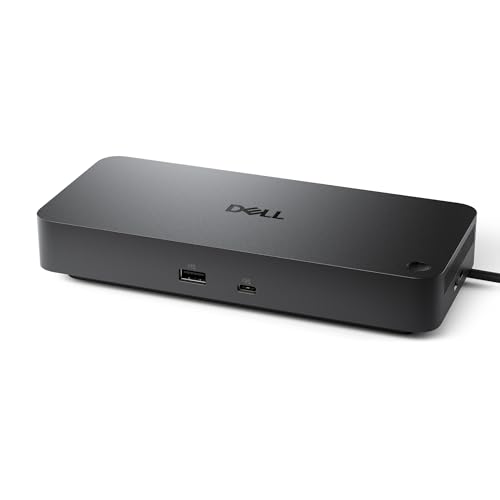
- Up to 100W power delivery
- Native support for up to four displays
- Three-year warranty and enterprise manageability
Best For: Office deployments and multi-display productivity
Multi-Display Specialist
Kensington SD5900T Thunderbolt 4 Dock

- Up to four 4K displays on supported MacBooks
- Two 40Gbps downstream Thunderbolt 4 ports
- 2.5GbE, HDMI, DisplayPort, SD, and microSD connectivity
Best For: MacBook multi-monitor setups and external Thunderbolt expansion
Enterprise Control
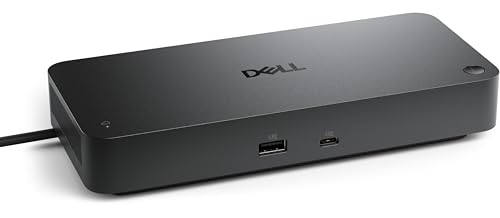
- 130W power delivery with support for four displays
- Remote management and scheduled firmware updates
- WPA3 security and hardware-based encryption
Best For: Managed business workspaces with multiple displays
PCIe Storage Hub
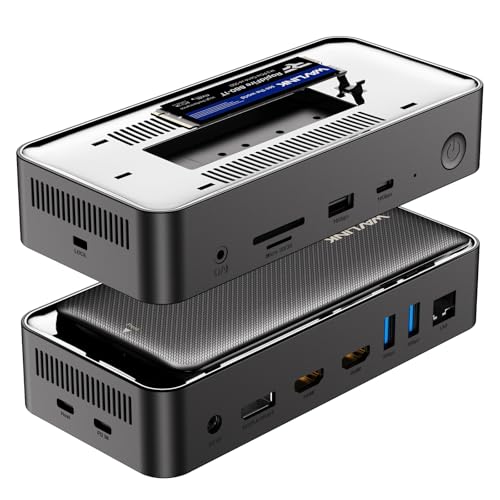
- M.2 enclosure supports PCIe NVMe and SATA SSDs
- Triple 4K display support on compatible Windows systems
- 10Gbps USB, Ethernet, card readers, and 100W PD support
Best For: Windows users needing M.2 storage expansion
Reliable Office Expansion

- 130W power delivery in a 180W dock configuration
- HDMI and dual DisplayPort monitor connectivity
- Six USB ports for office peripherals
Best For: Dell laptop users needing conventional office expansion
Best PCIe Expansion Enclosure – Dual PCIe Thunderbolt 3 Chassis
If you need docking stations with pcie expansion for adding specialized desktop cards to a laptop or compact computer, the MK-Q2L provides two PCIe 3.0 x16 slots over Thunderbolt 3 or 4 and USB4. Its 40Gbps connection supports cards such as video capture, network, and NVMe storage adapters.
Best For: Laptop, NUC, and compact-desktop users who need two external PCIe slots for expansion cards.
Pros:
- Provides two PCIe 3.0 x16 expansion slots.
- 40Gbps Thunderbolt connectivity supports demanding expansion cards.
- Aluminum passive-cooling design operates quietly.
- Includes a 60W adapter and an 8-pin power cable for supported cards.
Cons:
- It is primarily a PCIe expansion chassis rather than a general-purpose port dock.
- Installed cards still require their own drivers.
- Card dimensions are limited to 205mm x 25mm x 145mm.
This is a focused choice for users whose priority is external PCIe hardware rather than monitor, USB, or networking convenience. Driverless chassis operation and Windows, macOS, and Linux support add flexibility, provided the installed card is compatible.
Best Triple-Display Workstation Dock – Plugable 12-in-1 USB-C Dock
For docking stations with pcie expansion shoppers who mainly want broad workstation connectivity, this Plugable dock combines three HDMI outputs with USB peripherals, Gigabit Ethernet, audio, and 100W USB-C Power Delivery. DisplayLink support helps extend up to three monitors on compatible Windows, macOS, and ChromeOS systems.
Best For: Hybrid workstations and managed offices needing triple-display support and many everyday ports.
Pros:
- Supports up to three extended HDMI displays.
- Offers six USB 3.0 peripheral ports, Gigabit Ethernet, and audio connectivity.
- 100W USB-C Power Delivery supports host charging.
- Works with compatible USB-C, USB4, and Thunderbolt systems.
Cons:
- It does not provide physical PCIe card slots.
- DisplayLink requires driver installation on macOS.
- It is not compatible with Linux, and HDCP is not supported.
This dock suits buyers using “PCIe expansion” broadly to mean expanding a laptop workstation, rather than adding an internal PCIe card. Check host USB-C video and Power Delivery support before purchase, especially in mixed-device deployments.
Best High-Speed Storage Dock – UGREEN Maxidok Thunderbolt 5
The UGREEN Maxidok is a high-bandwidth option for docking stations with pcie expansion, with a built-in M.2 NVMe PCIe Gen4x4 slot supporting SSDs up to 8TB. It also supplies 17 ports, Thunderbolt 5 connectivity, 2.5GbE networking, display outputs, and substantial system power for a demanding desk setup.
Best For: Users who want fast removable NVMe storage alongside extensive Thunderbolt 5 connectivity.
Pros:
- Built-in PCIe Gen4x4 M.2 slot supports 2230–2280 NVMe SSDs up to 8TB.
- Thunderbolt 5 offers up to 120Gbps bandwidth.
- Provides 17 ports, including 2.5GbE, SD/TF, USB, audio, and display connections.
- Supports multiple high-resolution displays on Windows and dual displays on Mac.
Cons:
- The M.2 slot has specific size and heatsink-clearance requirements.
- The built-in cooling fan can produce audible noise while running.
- HDMI monitors require an active DisplayPort-to-HDMI adapter or cable.
This is more than a basic port replicator: its integrated NVMe bay makes it useful for expanding storage without an external enclosure. Confirm SSD dimensions, operating-system display support, and adapter requirements before ordering.
Best Business Thunderbolt Dock – Dell Pro Smart Dock SD25TB4
The Dell Pro SD25TB4 is a business-focused option among docking stations with pcie expansion, although its expansion comes through Thunderbolt 4, USB-C, display, networking, and management features rather than a physical PCIe slot. It can drive up to four 4K monitors and deliver up to 130W to Dell systems or 96W to other compatible devices.
Best For: Dell-centered offices needing multi-display connectivity, device management, and enterprise security features.
Pros:
- Supports up to four 4K displays through HDMI, DisplayPort, USB-C, and Thunderbolt 4.
- Provides up to 130W charging for Dell systems and 96W for others.
- Includes dual Thunderbolt 4 data ports and device chaining for up to six devices.
- Offers remote Wi-Fi management and business security features.
Cons:
- It does not include a physical PCIe expansion slot.
- Its strongest charging and management features are oriented toward business deployments and Dell systems.
- The listed operating-system requirement is Windows 10 or newer.
This dock is best viewed as a premium enterprise workstation hub rather than a PCIe-card enclosure. It is a strong fit when display density, charging, remote administration, and security matter more than installing add-in cards.
Maximum Bandwidth – Thunderbolt 5 NVMe Dock
For demanding setups, this Thunderbolt 5 model is a powerful choice among docking stations with pcie expansion. It combines three Thunderbolt 5 ports, high-speed display support, extensive connectivity, and a built-in M.2 NVMe slot for customizable storage.
Best For: Creative professionals, high-resolution multi-monitor users, and anyone who wants integrated PCIe 4.0 x4 NVMe storage.
Pros:
- Supports dual 6K at 60Hz on Mac or dual 8K at 120Hz on Windows.
- Built-in M.2 slot supports up to 8TB and PCIe 4.0 x4 NVMe SSDs.
- Includes 2.5GbE, SD and microSD readers, USB ports, and up to 140W laptop charging.
Cons:
- Requires a compatible Thunderbolt 5 setup to realize its highest performance.
- NVMe storage is customizable but may require a separate SSD.
Choose this dock when bandwidth and expansion matter more than simplicity. Its M.2 slot gives it a meaningful advantage over conventional docks, while the 15-port layout suits demanding desktop workflows.
Business-Ready Choice – Dell Pro WD25 Dock
The Dell Pro WD25 is a practical option for office users comparing docking stations with pcie expansion, though its supplied specifications focus on USB-C connectivity rather than an internal PCIe slot. It delivers up to 100W of power, broad operating-system support, Ethernet, and native support for up to four displays.
Best For: Managed office deployments, Dell AI PC users, and mixed-PC workplaces needing reliable display and peripheral expansion.
Pros:
- Provides up to 100W of power to compatible Dell and non-Dell PCs.
- Supports up to four high-resolution displays.
- Offers flexible cable routing, USB-A and USB-C ports, Ethernet, HDMI, and DisplayPort.
- Includes a three-year limited hardware warranty with advanced exchange.
Cons:
- Does not list an internal PCIe or M.2 expansion slot.
- Display and operating-system support should be confirmed for the specific computer.
This is best viewed as a managed productivity dock rather than a true PCIe-storage expansion solution. Its strengths are broad compatibility, quad-display capability, power delivery, and enterprise-oriented support.
Multi-Display Specialist – Kensington SD5900T Thunderbolt 4 Dock
The Kensington SD5900T is designed for users who prioritize display expansion and Thunderbolt connectivity. While it does not specify an internal PCIe slot, its Thunderbolt 4 ports can connect compatible external PCIe devices such as SSD enclosures, making it relevant when evaluating docking stations with pcie expansion.
Best For: MacBook users with supported chipsets who need up to four 4K displays, fast Thunderbolt peripherals, and extensive media connectivity.
Pros:
- Supports up to four 4K displays at 60Hz on compatible MacBook Pro and Air models.
- Includes two downstream Thunderbolt 4 ports with 40Gbps transfer support.
- Offers HDMI, DisplayPort, SD, microSD, 2.5GbE, USB, and audio connections.
- Provides 100W charging, a three-year warranty, and lifetime technical support.
Cons:
- Quad-display support depends on the MacBook chipset and configuration.
- PCIe expansion requires a separate compatible Thunderbolt device.
- The optional zero-footprint mounting bracket is sold separately.
This dock stands out for flexible video output and a high port count. It is a strong fit for compatible MacBook workstations, but buyers seeking built-in PCIe storage should choose a model with an integrated M.2 slot instead.
Enterprise Control – Dell Pro Smart Dock SD25
The Dell Pro Smart Dock SD25 is a business-focused option for users comparing docking stations with pcie expansion, especially when remote administration, security, and multi-display support matter more than adding an internal storage slot. Its ambidextrous USB-C cable, 130W power delivery, and support for up to four displays make it suited to structured office deployments.
Best For: Managed business workspaces that need remote dock administration, strong security, and multiple displays.
Pros:
- Supports up to four displays and provides up to 130W power delivery.
- Remote configuration, deployment, and firmware updates through the Dell Device Management Console.
- Includes WPA3 192-bit Wi-Fi security and hardware-based encryption.
- Uses at least 65% post-consumer recycled materials and recycled or renewable packaging.
Cons:
- Its supplied features emphasize enterprise management rather than PCIe storage expansion.
- Best suited to compatible notebooks and managed Dell-oriented environments.
The SD25 is a strong choice for IT departments standardizing employee workstations. Choose it for manageability and secure multi-monitor productivity, not as a storage-expansion dock.
PCIe Storage Hub – WAVLINK 12-in-1 M.2 Dock
The WAVLINK 12-in-1 dock is the most direct fit for shoppers seeking docking stations with pcie expansion. Its built-in M.2 enclosure supports both 10Gbps PCIe NVMe and 6Gbps SATA SSDs, while the dock also combines high-speed USB, multi-monitor output, Ethernet, card readers, and laptop charging support.
Best For: Windows users who want expandable M.2 storage alongside triple-display and peripheral connectivity.
Pros:
- Built-in M.2 enclosure supports PCIe NVMe and SATA SSDs.
- Windows systems can support up to three 4K displays; single-display output reaches up to 8K at 60Hz under specified conditions.
- Provides 10Gbps USB ports, card readers, Ethernet, and up to 100W laptop charging support.
- Dedicated dock power helps support simultaneous operation of displays, USB devices, and the SSD enclosure.
Cons:
- The 100W laptop charger is not included; the included adapter powers the dock itself.
- Mac systems are limited to one external display in extended mode by the supplied compatibility notes.
- Display performance and monitor count can depend on the host computer’s graphics hardware.
For PCIe-based storage expansion, this WAVLINK model offers the broadest feature match in the group. Check your computer’s display capabilities and plan to supply a compatible USB-C PD charger for full charging functionality.
Reliable Office Expansion – Dell WD19S USB-C Dock
Dell WD19S 180W Docking Station (130W Power Delivery) USB-C, HDMI, Dual DisplayPort, Black
Check Price On AmazonThe Dell WD19S is a conventional USB-C desktop dock for shoppers comparing docking stations with pcie expansion but who primarily need display and workstation connectivity. It offers 130W power delivery, HDMI and dual DisplayPort outputs, and six USB ports for compatible USB-C laptops and peripherals.
Best For: Dell laptop users building a straightforward office setup with external displays and USB accessories.
Pros:
- Provides 130W power delivery through the 180W dock configuration.
- Includes HDMI and dual DisplayPort connectivity for external monitors.
- Offers six USB ports for common workstation accessories.
- Compact black desktop-oriented design from Dell.
Cons:
- The supplied specifications do not identify a PCIe or M.2 storage-expansion enclosure.
- Compatibility is described broadly for USB-C devices but particularly favors Dell laptops.
- Its listed details provide less feature information than the newer multi-purpose dock options.
The WD19S is a sensible choice when dependable USB-C display and peripheral expansion are the priority. If PCIe storage is essential, select a dock with an explicitly integrated M.2 enclosure instead.
How We Picked These Docking Stations with Pcie Expansion
We focused on the features that determine whether an expansion dock works well in daily use: host connection standard, available bandwidth, PCIe or M.2 support, display outputs, charging capacity, networking, operating-system compatibility, and port selection. The list includes both traditional docks and dedicated PCIe expansion chassis because they solve different problems. A PCIe enclosure may provide more flexible hardware expansion, while a conventional dock is usually simpler for displays, USB accessories, and charging.
We also considered practical limitations such as Thunderbolt generation, DisplayLink requirements, lane sharing, cable compatibility, and whether expansion storage uses PCIe NVMe, SATA, or a full-size PCIe slot.
Quick Comparison
- Best for broad connectivity: Thunderbolt 4 and Thunderbolt 5 docks with multiple display outputs, USB ports, Ethernet, and high-wattage charging.
- Best for PCIe hardware: A dedicated Thunderbolt 3 PCIe chassis with one or more full PCIe slots.
- Best for compact storage expansion: A USB-C dock with an integrated M.2 PCIe/SATA enclosure.
- Best for mixed-platform offices: A dock with DisplayLink, provided you are comfortable installing software and accepting its workload-dependent behavior.
- Best for mainstream laptop setups: USB-C docks offering 90W to 130W charging, DisplayPort or HDMI, Ethernet, and several USB ports.
Key Buying Factors for Docking Stations with Pcie Expansion
Connection Standard and Bandwidth
Thunderbolt 3 and 4 provide a strong baseline for PCIe tunneling, high-speed storage, and multiple displays. Thunderbolt 5 raises the bandwidth ceiling but only delivers its full benefit when the laptop, cable, and peripherals support it. USB-C docks can be excellent for office use, but USB-C alone does not guarantee Thunderbolt-level performance.
Expansion Format
Check whether the dock accepts a full PCIe card, an M.2 NVMe drive, a SATA drive, or no internal expansion at all. Full-slot enclosures are more suitable for capture cards, networking adapters, sound cards, and other specialized hardware. M.2 models are typically better for adding fast, compact storage.
Displays and Power Delivery
Confirm the maximum resolution and refresh rate for every display combination, not just the headline maximum. Also compare the dock’s power-delivery rating with your laptop’s charger requirement. A 100W or higher dock may still provide less power to the computer after reserving power for its own operation.
Compatibility and Desk Setup
Mac and Windows support can differ, especially for multi-monitor modes and DisplayLink docks. Verify your laptop’s port capabilities, operating-system support, required drivers, and preferred monitor inputs before buying. Include Ethernet speed, Wi-Fi, audio, USB data rates, and cable length in your final comparison.
Who Should Buy Which Docking Stations with Pcie Expansion?
Choose a dedicated PCIe enclosure if you need a specific expansion card or maximum hardware flexibility. Choose a Thunderbolt 4 or Thunderbolt 5 dock if you want one cable for displays, charging, storage, networking, and accessories. An M.2-equipped USB-C dock suits users who mainly need additional fast storage without installing a desktop PCIe card.
For office workers connecting two or more monitors, prioritize confirmed display support and charging over theoretical PCIe speed. For creative professionals and technical users, prioritize Thunderbolt bandwidth, sustained storage performance, cooling, and the number of independent PCIe lanes. Finally, select the simplest dock that meets your requirements; unused expansion capability adds cost and may introduce compatibility issues without improving your workflow.